


Are you looking for the best ways to boost your WooCommerce store conversions? In this post, we will show you 10 things to keep in mind when your WooCommerce conversions are declining.
Traffic without sales is the usual complaint in WooCommerce. The store gets visitors. The conversion rate stays low. Carts fill, then sit. Checkout feels heavy. Product pages look thin. SEO brings clicks that never become orders.
This audit covers 10 checks that boost WooCommerce conversion rate without a full rebuild: product images and copy, add-to-cart friction, guest checkout, load time, trust signals, cart abandonment recovery, and checkout optimization.
Use it to find weak product pages, simplify the funnel, and boost your WooCommerce store conversions with fixes you can test this week.
What Are WooCommerce Conversions and Why Focus on Them
A WooCommerce conversion is a visitor who completes their purchase. Conversion rate is that number divided by the number of sessions. If the WooCommerce store gets traffic but no sales, the store isn’t converting.
Clicks from SEO and ads hit product pages, then stall at add-to-cart, cart, or a complicated checkout.
That gap is expensive.
eCommerce already carries a high cart abandonment rate.
WooCommerce stores are especially exposed because the stack is WordPress plus plugins.
Slow load times, a forced create-an-account step, weak product pages, or missing trust signals will reduce the store’s conversion rate even when website traffic looks healthy. Focus on conversion optimization because it raises WooCommerce sales without buying more clicks.
You use analytics and a simple audit to find friction in the funnel, then test the fix. Better product descriptions, product images, social proof such as customer reviews, guest checkout, and abandoned cart recovery all help increase conversion rates.
Many store owners chase more traffic first. If the conversion rate is low, extra visitors still bounce.
WooCommerce conversion rate optimization, including checkout optimization and cart recovery, is how you turn visitors into buyers and increase your WooCommerce conversion on the same WooCommerce website.
Website Traffic vs Conversions: What Are the Differences
Traffic is the number of visitors to the WooCommerce website. Conversion is the percentage of shoppers who complete checkout. A store can win at SEO and still lose sales if product pages, add-to-cart, cart, and checkout stay messy.
Use this table to separate the two before you try to boost conversions on your WooCommerce store.
| Point | Website Traffic | Conversions |
|---|---|---|
| What it measures | Sessions and visitors who arrive from SEO, ads, email, or social | Visitors who buy, or complete a goal such as add to cart |
| Where you see it | Google Analytics dashboard, Search Console, ad reports | WooCommerce reports, average conversion rate, sales and revenue |
| Typical problem | Low sessions, weak technical SEO, thin content | Getting traffic but no sales, cart abandonment, low mobile conversion |
| What you optimize | Rankings, landing pages, load time, WooCommerce and WordPress plugins | Product image, trust signals, guest checkout, checkout optimization |
| Common miss | More clicks into weak product pages | Forced create an account step, abandoned cart with no cart recovery |
| Goal | Bring the right shopper to the online store | Increase WooCommerce sales from the traffic you already have |
Traffic fills the funnel. Conversion rate optimization is what turns that funnel into WooCommerce sales.
Factors That Affect WooCommerce Conversion Rate
The WooCommerce store’s conversion rate is not one number you “set.” It is the result of product pages, cart, checkout, speed, trust, and the plugins you use. WooCommerce store owners who only watch traffic miss why visitors who aren’t buying drop off.
These six factors decide if you boost your WooCommerce store’s sales or keep feeding the average cart abandonment rate.
- Product Pages and “Add To Cart”: Thin WooCommerce product pages, weak images, and vague copy stop the click. Clear pricing, stock, and shipping, along with a visible add-to-cart button, lift the first step of the funnel.
- Checkout Friction: A long WooCommerce checkout, forced account creation, or extra fields will stall the shopper. WooCommerce checkout optimization is often the fastest way to increase your sales.
- Trust and Social Proof: Missing reviews, guarantees, and payment logos make an e-commerce store feel risky. Trust signals help visitors complete the order on your WooCommerce website.
- Speed and User Experience: Slow load times, especially on mobile, kill conversions before the cart. A WooCommerce plugin that bloats the page can cost more than it adds.
- Cart and Recovery: Abandoned carts are normal. No cart recovery emails or reminders means you leave money in the session.
- Plugin and Theme Stack: Common WooCommerce extras can clash. Too many apps slow down the store and confuse the checkout process. Use WooCommerce plugins you can measure, then keep what actually supports WooCommerce conversion optimization.
10 Things You Need to Do to Optimize Your WooCommerce Conversion
| Check | Why It Matters | What To Look For | Quick Fix |
|---|---|---|---|
| Product Pages (Images And Copy) | Weak pages stop add to cart before checkout starts | One photo, thin copy, hidden reviews | Add more useful images, benefit-led copy, reviews near the title |
| Add To Cart Button | No click means no cart and no sale | Button below the fold, low contrast, tiny tap target | Keep it visible, high contrast, sticky on mobile |
| Guest Checkout | Forced accounts raise drop-off at payment | Login wall as the first checkout screen | Turn guest checkout on and make it the clear path |
| Checkout Fields And Payments | Extra fields and missing wallets stall WooCommerce checkout | Long form, no express pay, total jumps late | Cut unused fields, show full total, add familiar payments |
| Load Time | Slow pages bounce before the product is seen | Heavy images, unused plugins, weak hosting | Compress images, cache correctly, remove unused plugins |
| Trust Signals And Social Proof | Doubt kills both add to cart and payment | No reviews, no returns note, no payment logos | Show reviews, guarantee, and secure payment marks |
| Cart Abandonment Recovery | Most carts never finish without a reminder | No abandoned cart emails, no guest email capture | Send 1–2 short recovery emails with a checkout link |
| Shipping And Total Cost Clarity | Surprise fees drive cart abandonment | “Calculated at checkout” with no early estimate | Show shipping, tax, and delivery time before pay |
| Mobile User Experience | Most traffic is phone traffic | Tiny buttons, no swipe gallery, broken checkout keyboard | Fix tap targets, sticky CTA, and mobile checkout |
| Analytics And Funnel Tracking | You cannot fix a leak you cannot see | Only session totals, no view to purchase steps | Track product view, add to cart, checkout, and purchase |
1. Product Pages (Images and Copy)
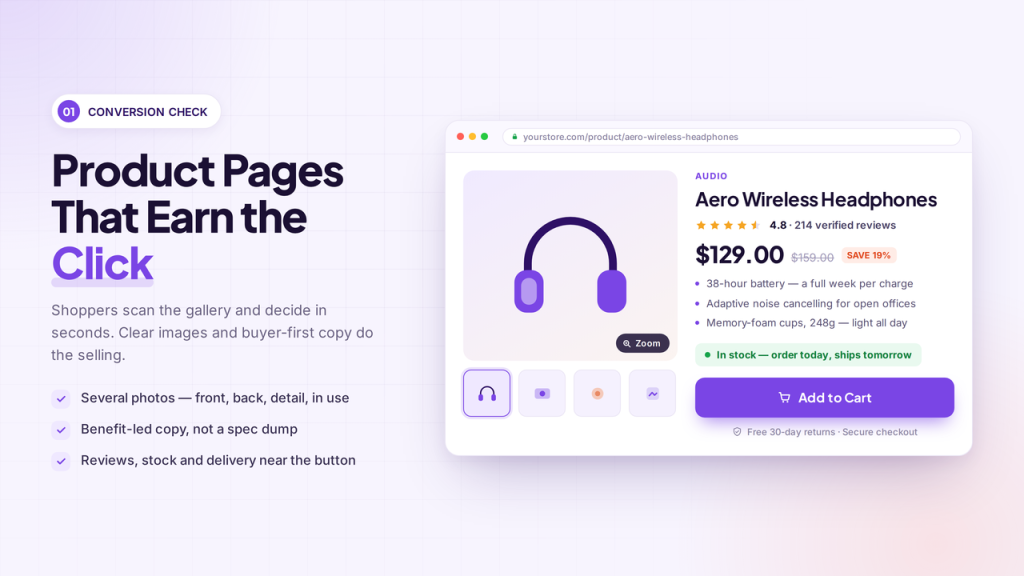
Most WooCommerce conversion problems start here. The shopper lands on a product page, scans the gallery, and decides in seconds. One small photo and a spec dump will not get an add-to-cart click.
They need clear images, a price they can trust, and copy that answers the next objection. Use several photos: front, back, detail, size, and one in use. Add zoom. Compress files so load time does not wreck the page.
Write the short description for the buyer, not for the warehouse. Lead with what it does, then size, materials, and shipping. Put stock status and delivery near the button. Reviews belong next to the title, not buried in a tab. If the page looks thin, the funnel is already leaking.
Fix the product page first, then test checkout. That is the cheapest way to lift the store’s conversion rate without buying more traffic.
2. Add To Cart Button
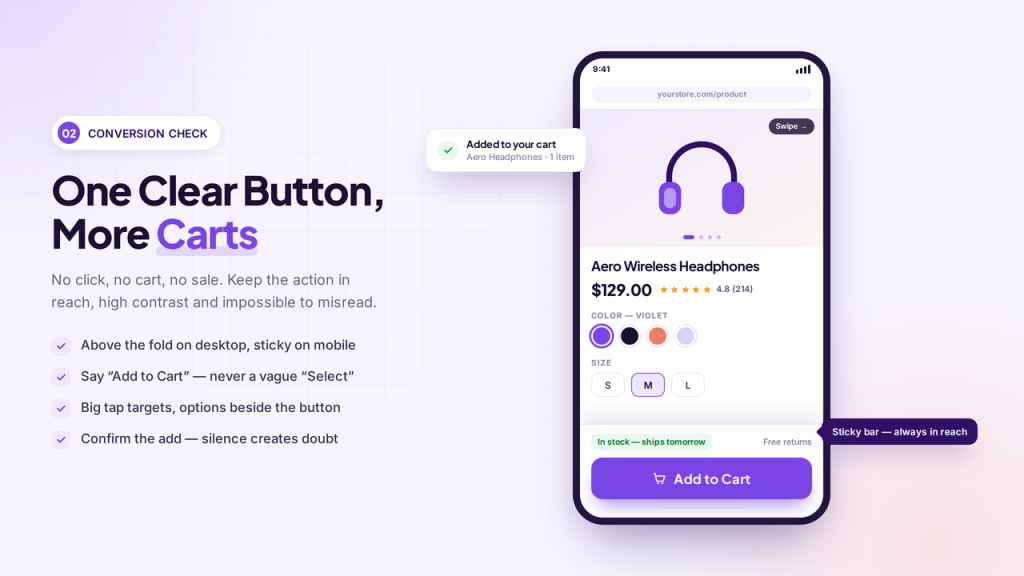
Traffic that never hits add to cart never reaches checkout. On many WooCommerce product pages, the button sits too low, matches the theme color, or disappears after a short scroll. The shopper likes the item, looks for the next step, and leaves. Keep the button above the fold on desktop.
On mobile, add a sticky add to cart bar so the action stays on screen. Use a color that contrasts with the page, not a pale outline. Label it “Add To Cart,” not a vague “Select.” If the product has options, show size and color next to the button so they do not hunt.
Watch tap size. Small targets fail on phones. After they click, confirm the item landed in the cart. A silent add creates doubt and extra clicks. Test this before you rebuild the whole theme. One clear button can increase the add-to-cart rate without touching ads.
3. Guest Checkout
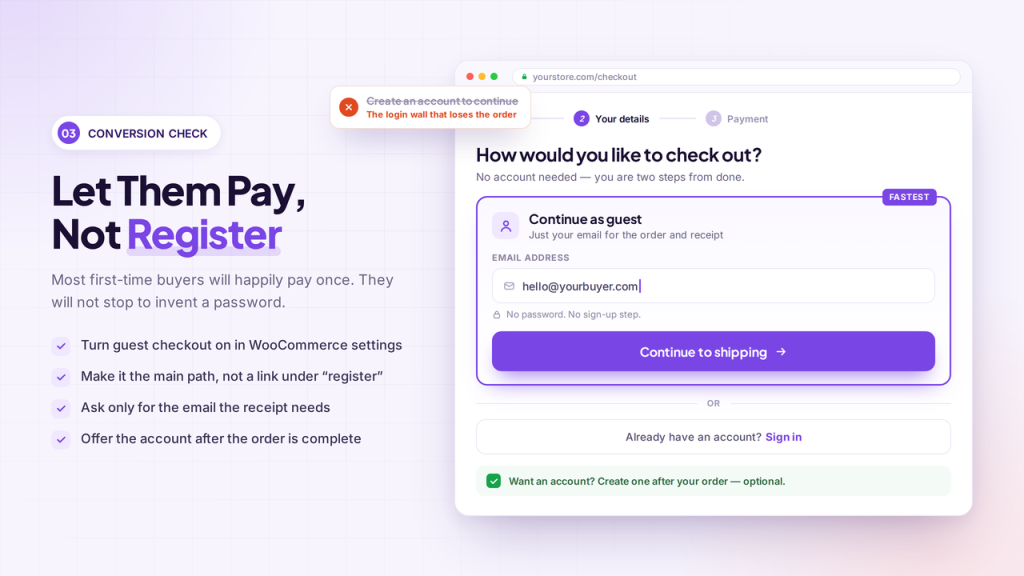
Asking every shopper to create an account is one of the fastest ways to stall WooCommerce checkout. Many people will pay once. They will not stop to invent a password. If guest checkout is off or hidden behind a login form, you lose orders already in the cart.
Turn guest checkout on in WooCommerce account settings. Make it the clear path, not a small link under “register.” Collect the email you need for the order and receipts. Offer account creation after purchase, once the sale is complete.
Test the flow as a new visitor on mobile. If the first screen is a login wall, fix that before you add more fields. Guest checkout will not replace accounts for repeat buyers. It removes a step that blocks first-time conversion and keeps the checkout process short.
4. Checkout Fields and Payments
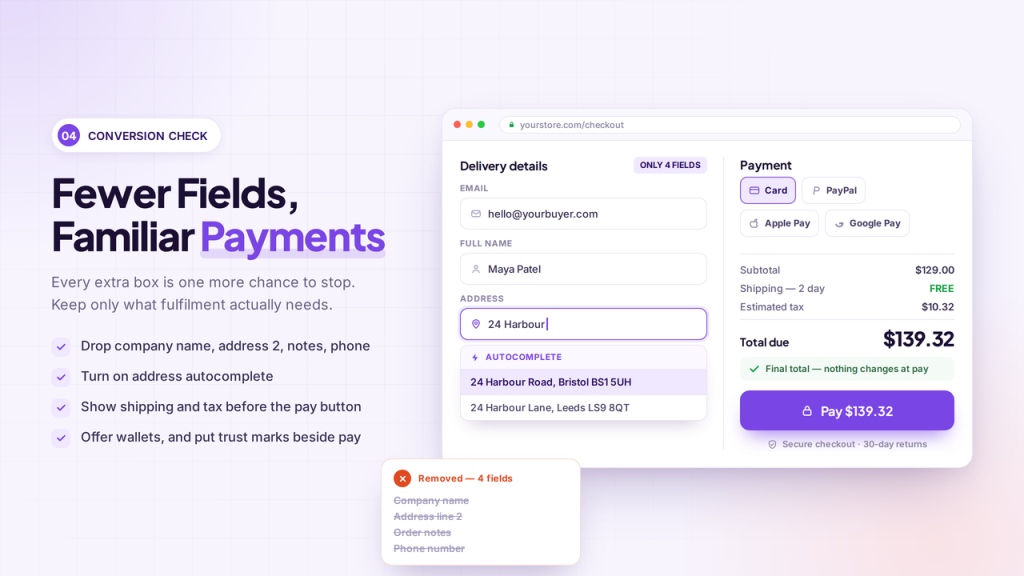
A long WooCommerce checkout is a common source of leaks. Extra fields look harmless in settings and costly in conversion. Company name, a second address line, order notes, and phone can wait if you do not need them to ship.
Every box is another chance to stop. Keep only what fulfillment requires: name, email, address, payment.
Use address autocomplete. Show shipping and tax before the pay button so the total does not jump. Offer the methods your shoppers already use, such as cards, a local wallet, or PayPal. Express options like Apple Pay and Google Pay help on mobile.
Place trust marks next to the pay button, not in the footer. Then place a real order yourself. If you hesitate, a first-time guest will leave. Fewer fields and familiar payments are checkout optimization that you can ship this week.
5. Load Time
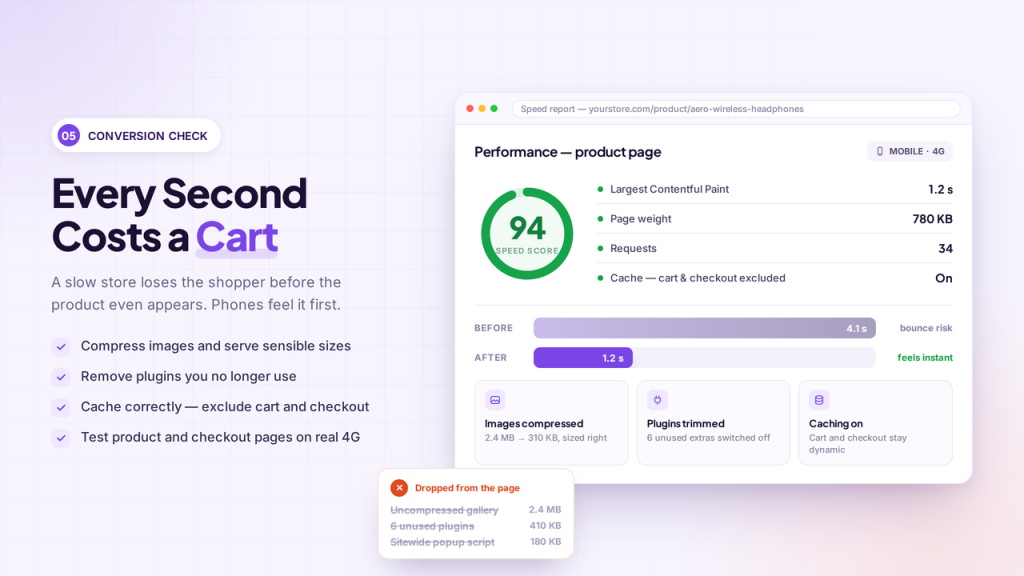
A slow WooCommerce website loses the shopper before the product page finishes. That hits mobile conversion first. Heavy images, unused plugins, a bulky theme, and weak hosting all add seconds.
Those seconds later show up as a low conversion rate and a high bounce rate on pages that already get traffic. Check product pages and checkout, not only the homepage. Compress images, serve sensible sizes, and enable caching that excludes cart and checkout.
Remove plugins you do not use. If a slider or popup loads on every URL, turn it off where it does not help. Use PageSpeed Insights and a real phone on cellular, not only your office Wi-Fi. Aim for a store that feels instant on the first tap.
Speed will not fix thin copy or a painful checkout. It does stop visitors from leaving before they can add to cart. Fix load time early so the other nine checks have a chance to work.
6. Trust Signals and Social Proof
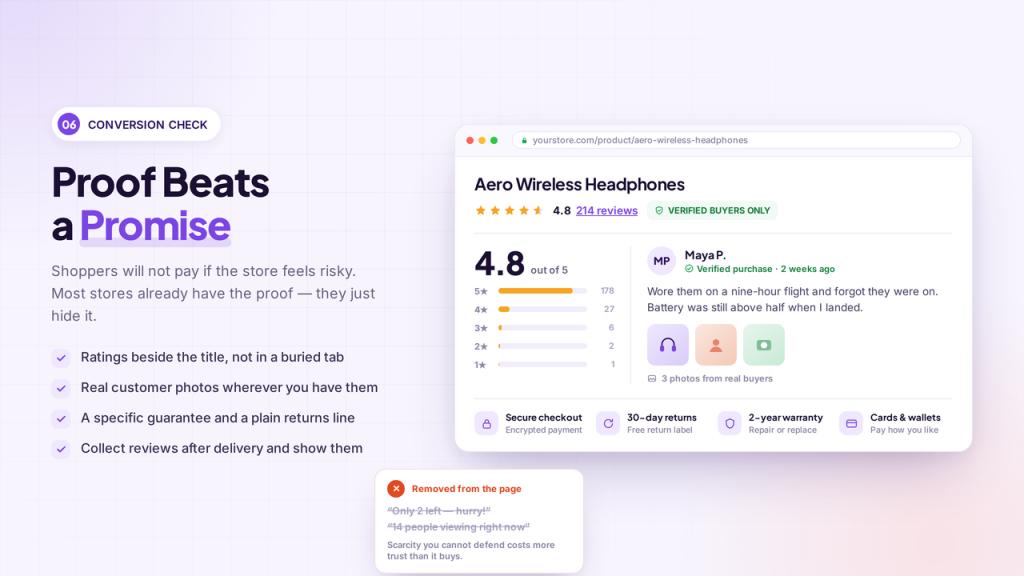
Shoppers will not complete a purchase if the store feels risky. Weak product pages, a bare checkout, and no proof from other buyers all raise that doubt. Trust signals and social proof do not replace a good product.
They reduce the fear that stops people from adding items to their carts and completing payment. Put star ratings and customer reviews near the title, not in a buried tab. Show real photos when you have them.
On the product page and at checkout, display payment logos, a clear return line, and secure checkout language. Guarantees work only if they are specific and easy to find. Skip fake scarcity and stock counters you cannot defend. Empty review blocks look worse than none.
Collect reviews after delivery and keep them visible. When traffic arrives and conversion stays low, check proof first. Many WooCommerce store owners already have reviews. They just hide them.
You can use a plugin like YayReviews to collect and display reviews. To create scarcity and boost sales, use YayBoost.
7. Cart Abandonment Recovery
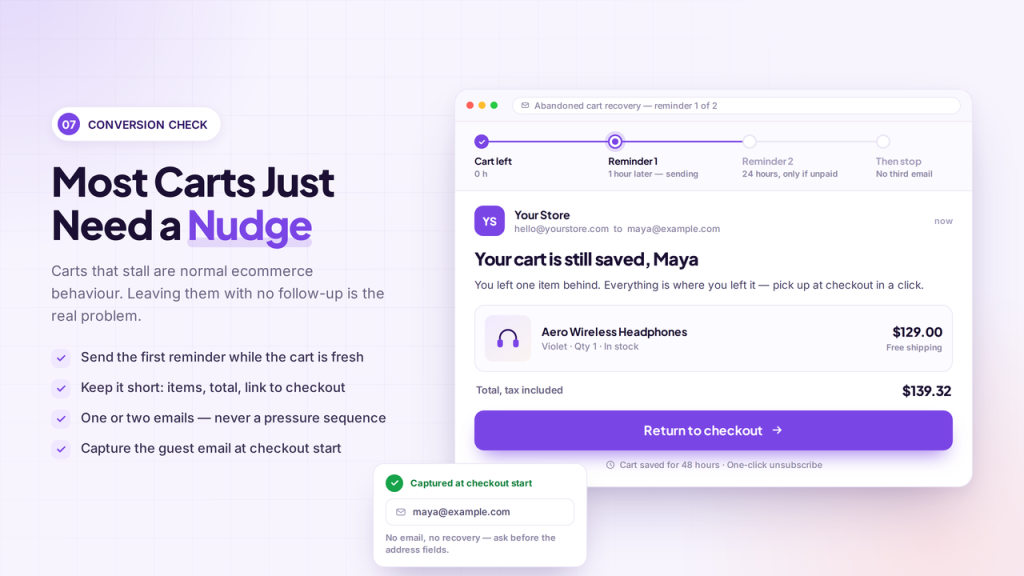
Most WooCommerce carts never become orders. That is normal ecommerce behavior, not a broken store by itself. The problem is leaving those carts with no follow-up. If a shopper adds items and leaves, you still have a window to bring them back before the session is gone.
Set up abandoned cart recovery emails. Send the first reminder while the cart is still fresh. Keep the message short: items, total, and a link back to checkout. A second note can go later if they still have not paid. Do not spam.
One or two useful emails beat a long sequence that feels like pressure. Check that guest emails are captured at checkout start. Recovery cannot run without an address. Pair this with a simpler cart page so the return visit is easy.
Recovery will not fix a painful checkout. It will pick up sales you already earned and then dropped.
8. Shipping and Total Cost Clarity
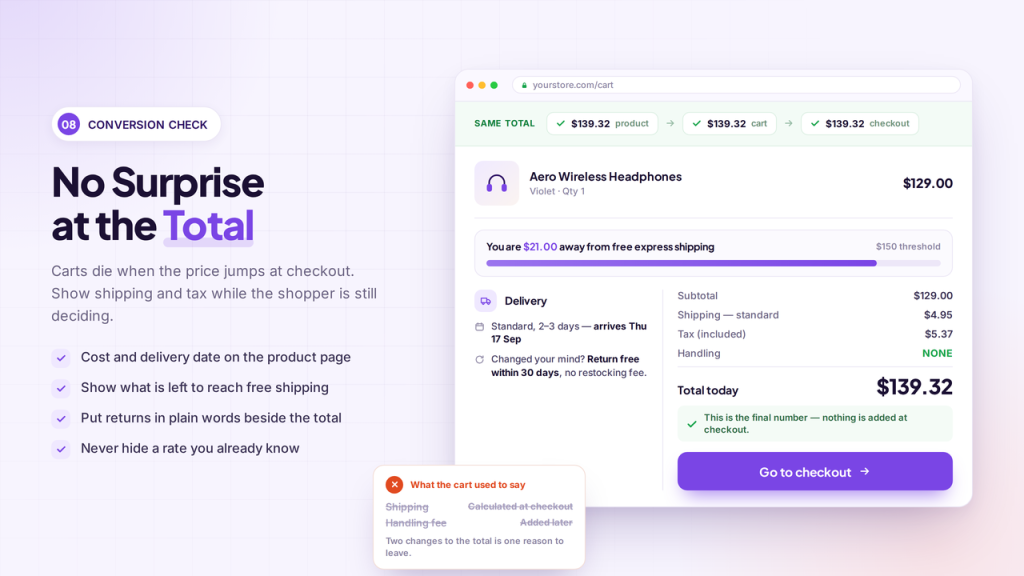
Shoppers abandon carts when the total jumps at checkout. If shipping, tax, or fees stay hidden until WooCommerce checkout, the price they trusted on the product page no longer matches. That surprise is a common reason carts sit unfinished.
Show delivery time and shipping cost as early as you can: product page, cart, then checkout. If you offer free shipping over a threshold, put the remaining amount on the cart. State returns in plain language next to the total.
Do not hide handling fees inside “calculated at checkout” if you already know the rate. Test the same path as a guest on mobile. If the number changes twice, fix the display before you add more discounts.
Clear totals protect conversion rate and cut support tickets about “why is my order more.”
If you need more control over factors like shipping fees, feel free to use YayPricing. With the plugin, you can offer free shipping on orders based on specific conditions.
9. Mobile User Experience
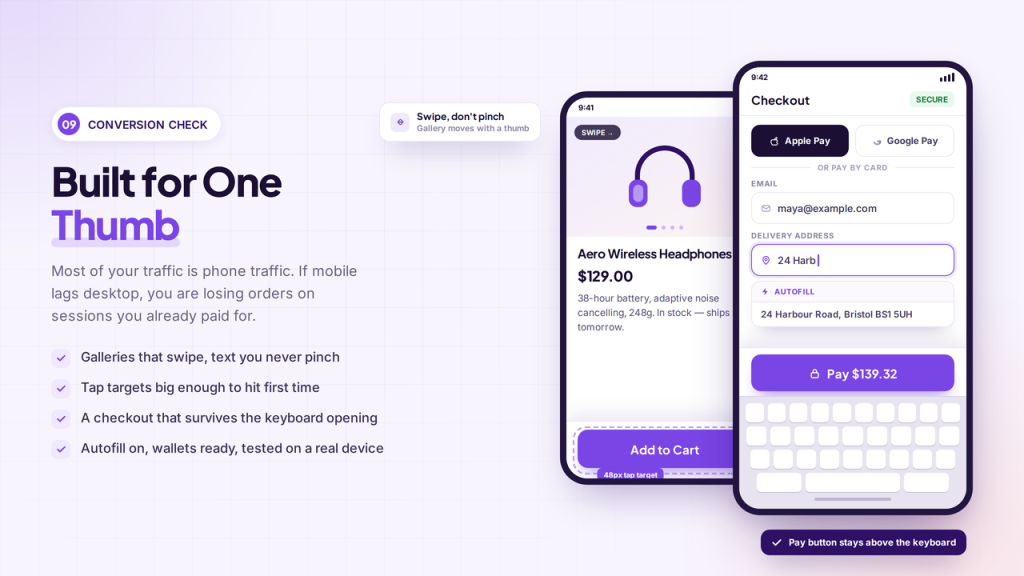
Most WooCommerce traffic now comes from phones. If mobile conversion lags desktop, the store is leaving orders on the same sessions you already paid for. Pinch-to-zoom galleries, tiny buttons, and a checkout that jumps when the keyboard opens will stop the shopper cold.
Check the product page on a real device. The image should swipe. The add to cart button should stay in reach. Text should stay readable without pinching. Filters and menus should not cover the screen.
At checkout, keep fields few, enable autofill, and test Apple Pay or Google Pay if those wallets matter in your market. Load time hits phones first. Heavy sliders and unused plugins hurt mobile more than desktop.
Fix tap targets and speed before you redesign the homepage. A store that works with one thumb will lift conversion without extra ads.
10. Analytics and Funnel Tracking
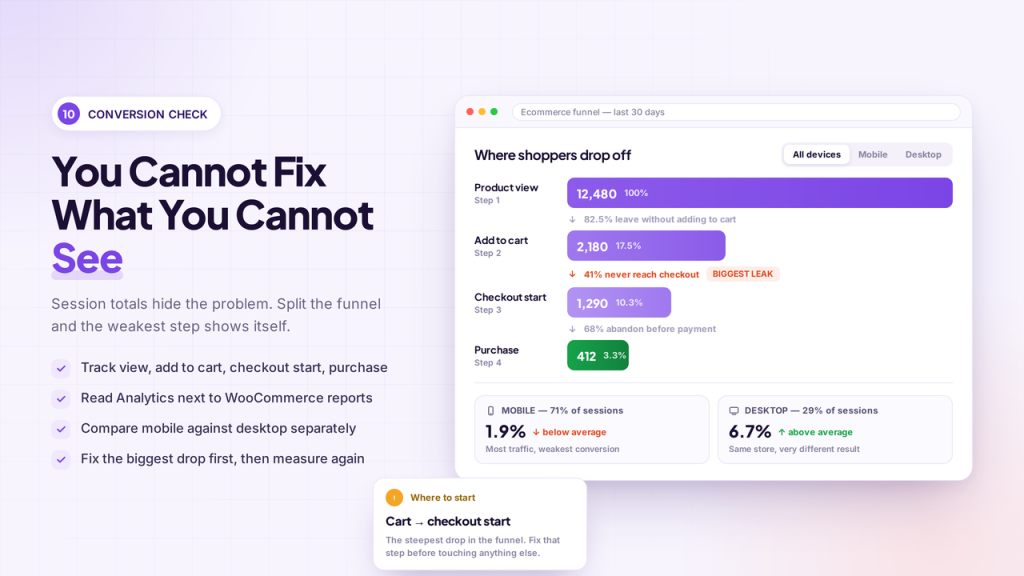
You cannot boost your WooCommerce store conversions if you only watch sessions. Traffic can rise while the conversion rate stays low. You need the funnel: product view, add to cart, checkout start, and purchase.
That is how you can see where shoppers drop off. Connect Google Analytics ecommerce tracking to the WooCommerce store. Compare those numbers with WooCommerce reports so orders and sessions sit in one picture. Look at mobile versus desktop.
Look at product pages with views but no add to cart. Look at carts that never reach checkout. A common miss is guessing. A slow page, a forced account step, or a weak gallery can look the same in total sales. Split the steps, pick the biggest leak, then test the fix.
Analytics will not raise revenue by itself. It tells you which of the other nine checks is costing you orders.
Here are some related articles you might like:
-
Boost Your WooCommerce Store Conversions: 10 Things to Check
-
10 Best WooCommerce Themes for Fashion and Clothing Stores
-
7 Best Jewelry WordPress Themes: Top Options for Your Store
-
6 Best WooCommerce Point of Sale Plugins (Tested & Loved by Store Owners)
-
How to Set Up Restricted WooCommerce Discount Coupons Based on Taxonomy
-
Top 8 Fastest WordPress Themes in 2026 (Tested)
Frequently Asked Questions
Now, let’s take a look at some frequently asked questions and answers on this topic.
What Is Conversion Rate Optimization For A WooCommerce Store?
Conversion rate optimization is the work of turning visitors you already have into orders. You look at product pages, cart, and checkout, then remove friction. It is different from SEO. SEO brings the session. CRO tries to make that session pay.
Why Is My WooCommerce Store Getting Traffic But No Sales?
The WooCommerce store gets clicks, then shoppers stall. Weak product pages, surprise shipping, a slow site, or a long checkout process can all stop the sale. More traffic will not fix a leaky funnel. Find where people drop, then fix that step.
How Do I Run A WooCommerce Conversion Rate Optimization Audit?
Open one live product on desktop and on a phone. Follow the path to payment and write down every extra click. Check images, add to cart, guest checkout, fields, totals, and plugins. Start with the biggest drop, not with a full redesign.
Can Checkout Optimization Increase WooCommerce Sales?
Yes. WooCommerce checkout optimization removes unnecessary fields, keeps guest checkout visible, and shows the full total before payment. A shorter checkout process removes a common block. That is often enough to increase your WooCommerce sales from the same traffic.
What Is A Normal Cart Abandonment Rate In Ecommerce?
Ecommerce stores see a high average cart abandonment rate. People compare, get interrupted, or dislike a surprise fee. The rate itself is not the full story. What matters is whether you recover those carts and make cart and checkout easier next time.
Does Abandoned Cart Recovery Really Boost Sales?
Abandoned cart recovery can bring back shoppers who already picked a product. Send a short reminder with the items and a link to checkout. Cart recovery will not save a broken WooCommerce checkout. It does pick up sales you already earned and then dropped.
Should I Force Shoppers To Create An Account?
A forced create an account step is a common WooCommerce leak. Many first-time buyers will pay once and leave if they have to create a password. Let them check out as a guest. Offer an account after the order is complete.
How Do Product Image And Copy Affect Conversion Rate Optimization?
Conversion rate optimization starts on the product page. A weak product image and thin copy give the shopper no reason to click Add to Cart. Use several clear photos, plain shipping notes, and reviews near the title so the page answers doubts fast.
Do Plugins And Technical SEO Affect The WooCommerce Website?
Yes. Extra plugins can slow down the WooCommerce website and hurt mobile conversion rates. Thin technical SEO can also send the wrong visitors. Keep the plugin list lean, watch load time, and match landing pages to search intent so ecommerce traffic has a chance to buy.
What Should I Simplify First To Increase WooCommerce Sales?
Simplify the live path first: product page, add to cart, guest checkout, and payment. That mix of checkout optimization and fewer extras will increase WooCommerce sales faster than a new theme. Measure the funnel after each change so you know what worked.
Conclusion
WooCommerce conversion is not a mystery metric. It is the product page, the add-to-cart button, guest checkout, checkout fields, payments, load time, trust, shipping totals, mobile use, cart recovery, and the funnel data that show where people stop.
Traffic without those checks still results in a low conversion rate. Do not wait for a redesign. Pick the biggest leak first. If product pages look thin, fix images and copy. If carts die at payment, turn on guest checkout and cut fields.
If phones bounce, fix speed and tap targets. Then watch add to cart, checkout start, and purchase in analytics. Every week you delay, the same sessions leave without an order. Run this audit on a live product this week, ship one fix, and measure it.
That is how you boost your WooCommerce store conversions with the traffic you already have.

Leave a Reply